Steps7
- Open Settings. Tap Staff & permissions.
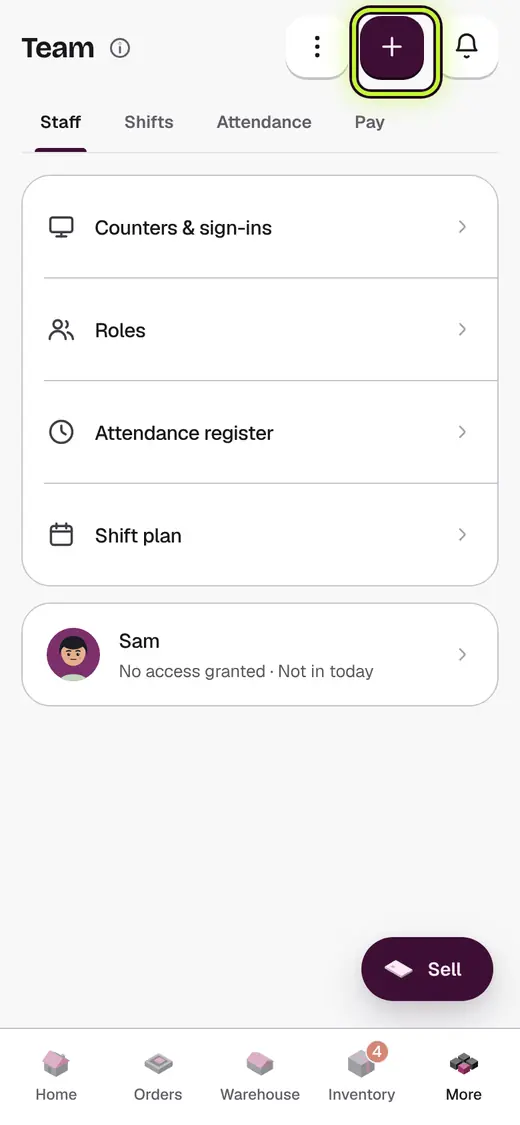
- Tap Add staff.
- Tap Upload a spreadsheet.
- Tap Download template and fill it in: one row per person.
- Tap Choose file.
- Check the rows, then tap the add button.
- Give each person a counter PIN, or send them a joining code.
Good to know
- Leave Role blank for Cashier. Use a role name from the Roles page for anything else.
- PINs are not in the sheet. That way no file holds everyone's PIN.
- Your plan's staff limit still counts. Rows past it are left out.
- People already on your list are skipped, not added twice.
Still stuck?
In the app, tap ? on the screen you are on and ask in your own words. Or email support@kowntx.com. A person replies in writing. Never send your PIN, code or card number.